
I had previously got Ubuntu 22.04.5 LTS running as a VM in Hyper-V on a Windows 11 machine with Enhanced Session configured properly so that the session window for the Linux instance displayed in the correct resolution. However, there was no audio.
Today, I attempted to troubleshoot the audio issue. Being unable to resolve it, I decided to upgrade to Ubuntu 24.04.3 LTS. This resolved the sound issue but broke the Enhanced Session. I was able to resolve that as well, so now I have Ubuntu 24.04.3 LTS running in Hyper-V with Enhanced Session enabled and audio functioning.
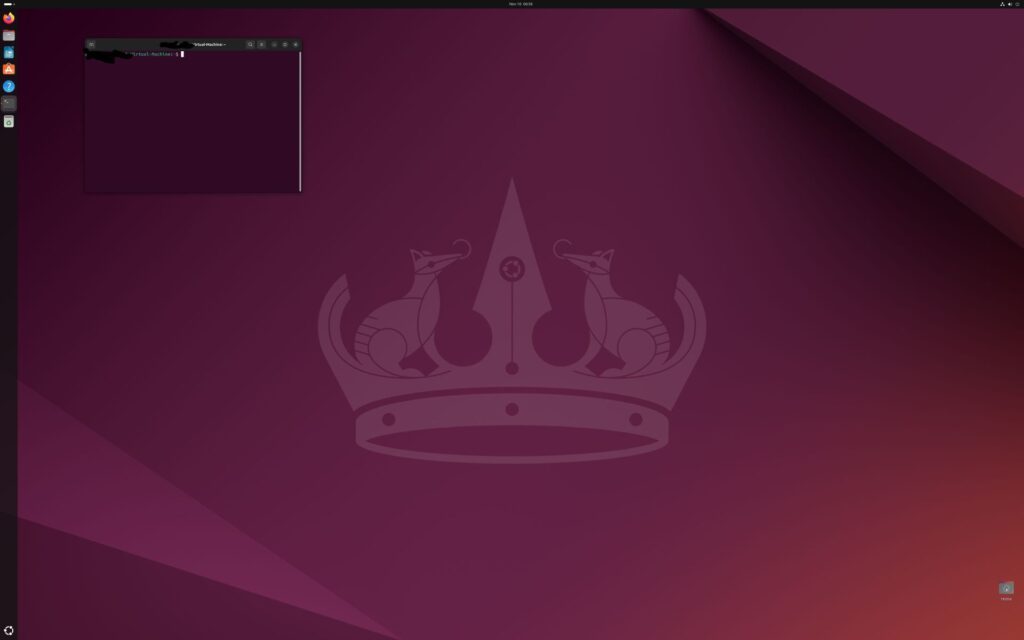
Here are my notes:
Environment:
- Host: Windows 11 Pro.
- Virtualization: Hyper-V.
- Guest OS: Ubuntu 22.04 (initially), upgraded to Ubuntu 24.04.
- Access Method: xrdp with Enhanced Session Mode enabled.
Initial Problem – Ubuntu 22.04
Issue: Ubuntu VM had no audio output. Sound settings only showed “Dummy Output” device.
Attempted Solution:
Tried to install PulseAudio modules for xrdp audio redirection:
sudo apt update

sudo apt install pulseaudio pulseaudio-module-xrdpResult: Package availability errors prevented successful installation. Audio issue remained unresolved.
Decision to Upgrade
Due to persistent package issues in Ubuntu 22.04, decided to perform in-place upgrade to Ubuntu 24.04.
New Problem After Upgrade
Issue: Enhanced Session Mode no longer available after Ubuntu upgrade. VM display reverted to small, fixed resolution window. Previously had working Enhanced Session with adjustable 4K resolution matching 16-inch display.
Solution – Restoring Enhanced Session Mode in Ubuntu 24.04.
Step 1: Install Enhanced Session components in Ubuntu VM.
Downloaded and ran the linux-vm-tools installation script:
cd ~
wget https://raw.githubusercontent.com/Hinara/linux-vm-tools/ubuntu20-04/ubuntu/22.04/install.sh
chmod +x install.sh
sudo ./install.sh
Shut down the VM completely after installation:
sudo shutdown -h nowStep 2: Enable Enhanced Session on Hyper-V host.
On Windows host, opened PowerShell as Administrator and ran (Replace “YourVMName” with actual VM name):
Set-VM -VMName "YourVMName" -EnhancedSessionTransportType HvSocketStep 3: Start the VM.
Started VM from Hyper-V Manager. Was presented with Enhanced Session connection screen with resolution options.
Result
After completing these steps:
- Enhanced Session Mode restored and functional
- 4K resolution working correctly.
- Audio working without additional configuration (resolved automatically during the process).
- xrdp login screen presenting properly on connection.
Notes
The upgrade to Ubuntu 24.04 combined with reinstalling Enhanced Session components resolved both the original audio issue and the post-upgrade display issue. The linux-vm-tools script automatically configured xrdp and audio components correctly for Ubuntu 24.04.